
How to use this guide
Find the right instructions for your role, read steps beside their screenshots and look up unfamiliar words.
- 1
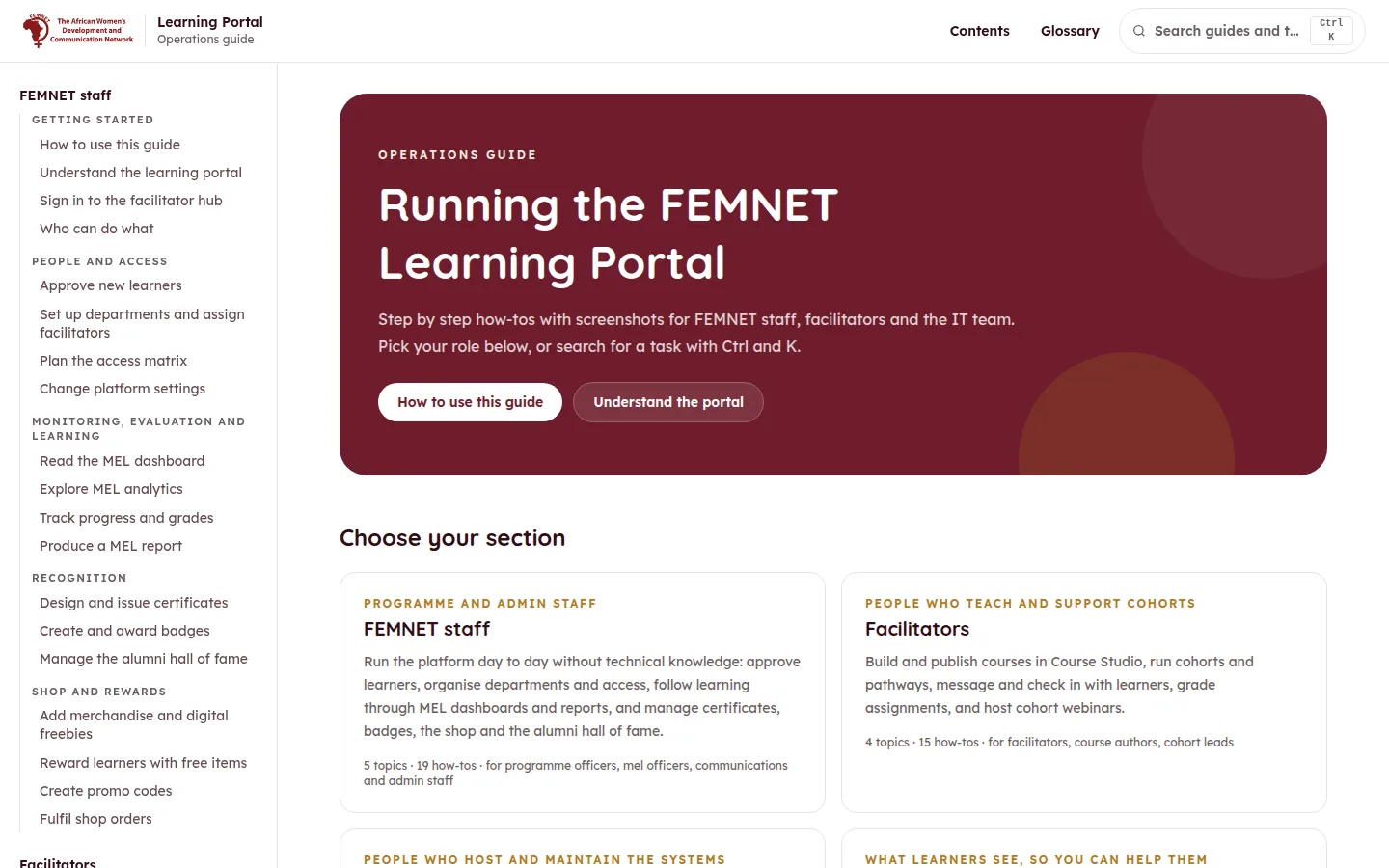
Pick the section for your role
The guide is split into four sections: FEMNET staff, Facilitators, IT team and Supporting learners. Start from the home page or the menu on the left and open the section that matches your work.
- 2
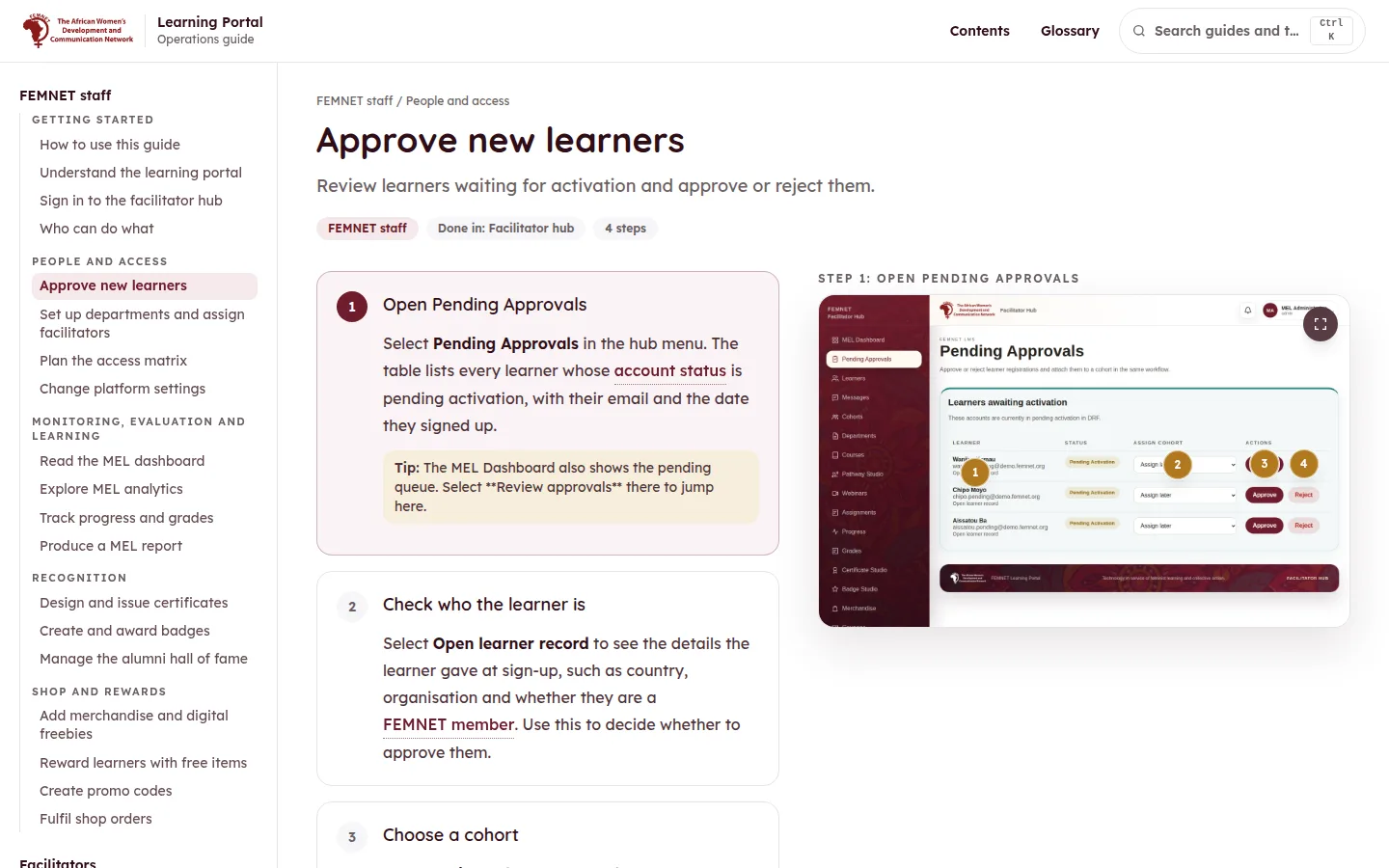
Follow the steps on the left
Each how-to is a numbered list of steps. As you scroll, the picture on the right changes to match the step you are reading. On a phone, the picture appears under each step instead.
- 3
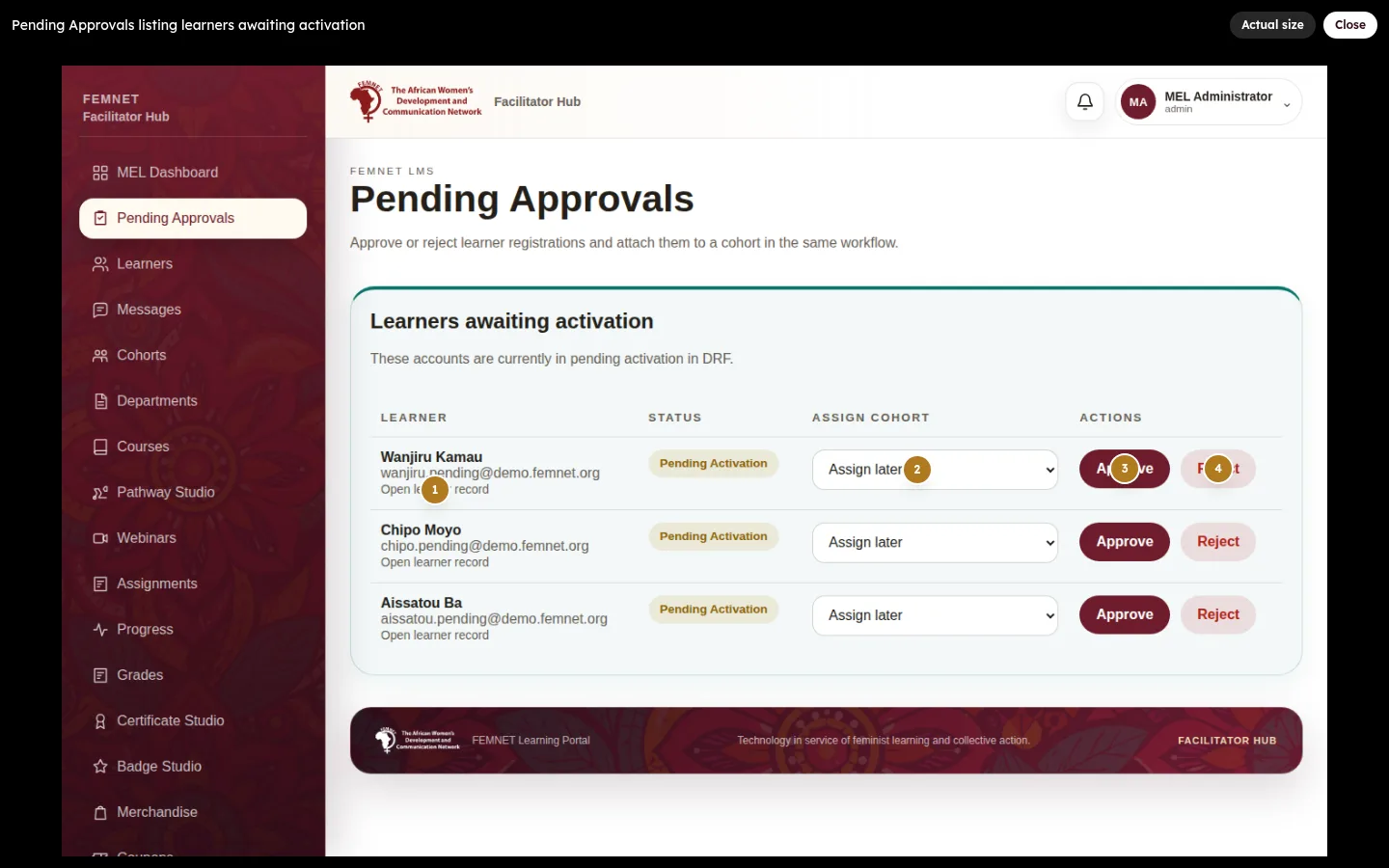
Look closer at a screenshot
Select the expand button in the corner of any screenshot to see it full screen. Numbered pins on a screenshot explain individual buttons: hover over or tap a pin to read what it does.
- 4
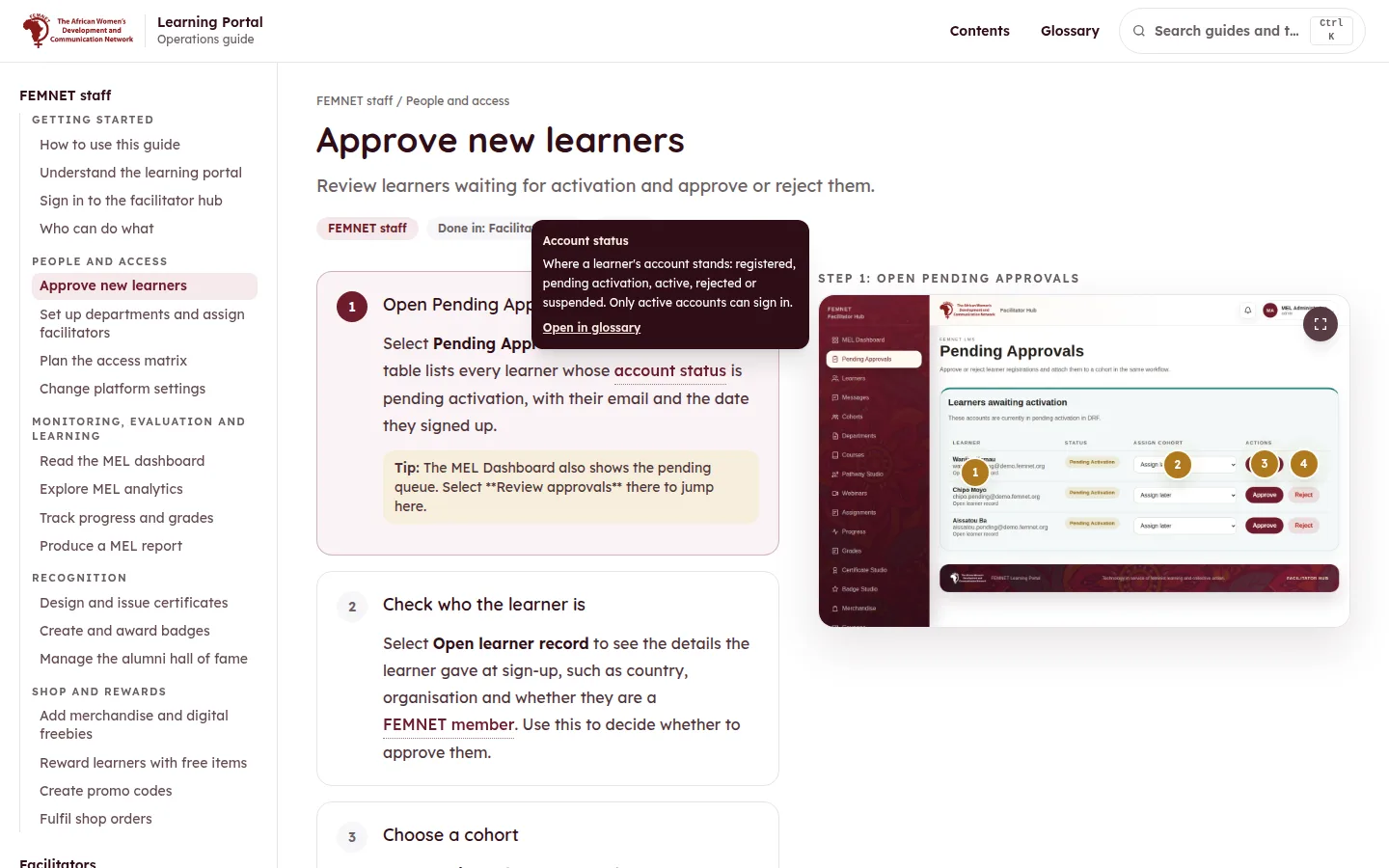
Check unfamiliar words
Words with a dotted underline, such as or , are in the glossary. Hover over or tap one to see a short definition, or open the full glossary from the top menu.
- 5
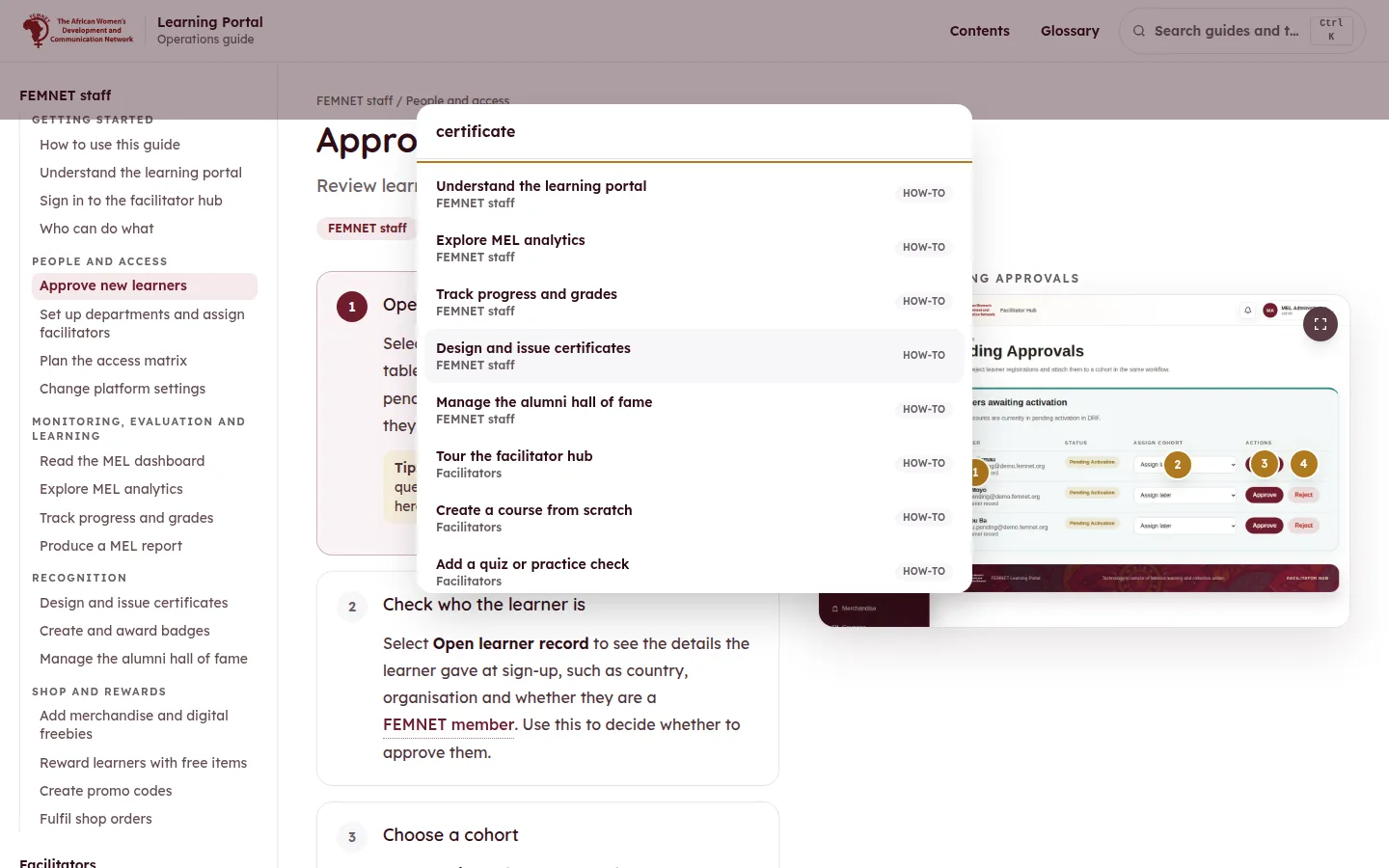
Search when you know what you need
Use the search box at the top, or press Ctrl and K together, to jump straight to a how-to or a glossary term.
Step 1: Pick the section for your role
What you will see
You can find any task, follow it step by step and understand the words used.