
Approve new learners
Review learners waiting for activation and approve or reject them.
- 1
Open Pending Approvals
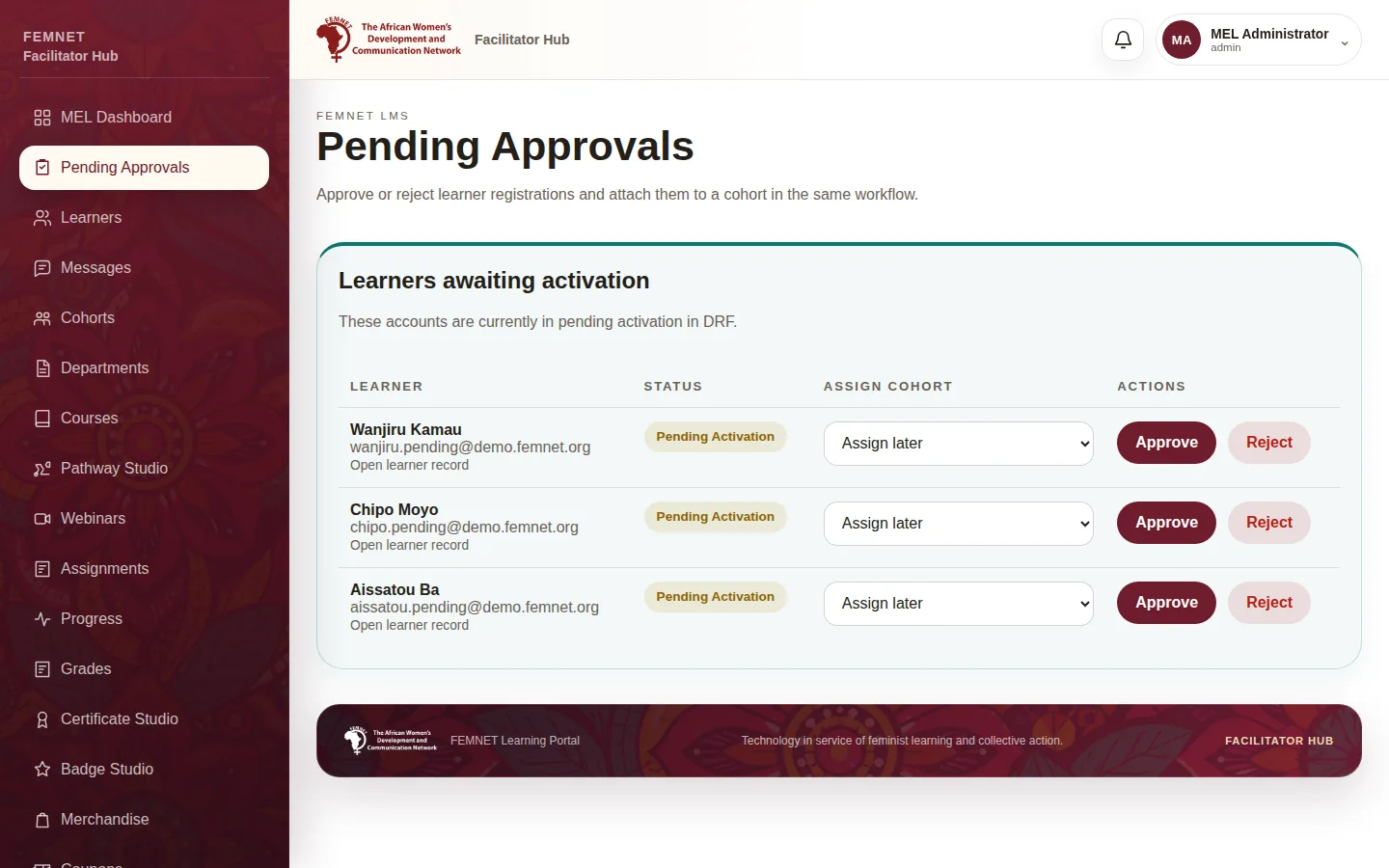
Select Pending Approvals in the hub menu. The table lists every learner whose is pending activation, with their email and the date they signed up.
Tip: The MEL Dashboard also shows the pending queue. Select Review approvals there to jump here.
- 2
Check who the learner is
Select Open learner record to see the details the learner gave at sign-up, such as country, organisation and whether they are a . Use this to decide whether to approve them.
- 3
Choose a cohort
In the Assign cohort column, pick the the learner should join. Choose Assign later if you do not know yet; you can add them to a cohort from their learner record afterwards.
- 4
Approve or reject
Select Approve to activate the account. The learner can sign in straight away and, if you chose a cohort, is enrolled in that cohort's courses.
Select Reject to refuse the sign-up. Rejected learners cannot sign in, but their record is kept and can be activated later from the Learners page.
Step 1: Open Pending Approvals
What you will see
The queue shows "Approval queue is clear" and approved learners can sign in.
If something goes wrong
- New learners never appear in the queue.
- Automatic approval is probably switched on in Settings, so learners are activated as soon as they sign up.