
How learners sign in
Signing in with a password and code, the welcome questions and the tour.
- 1
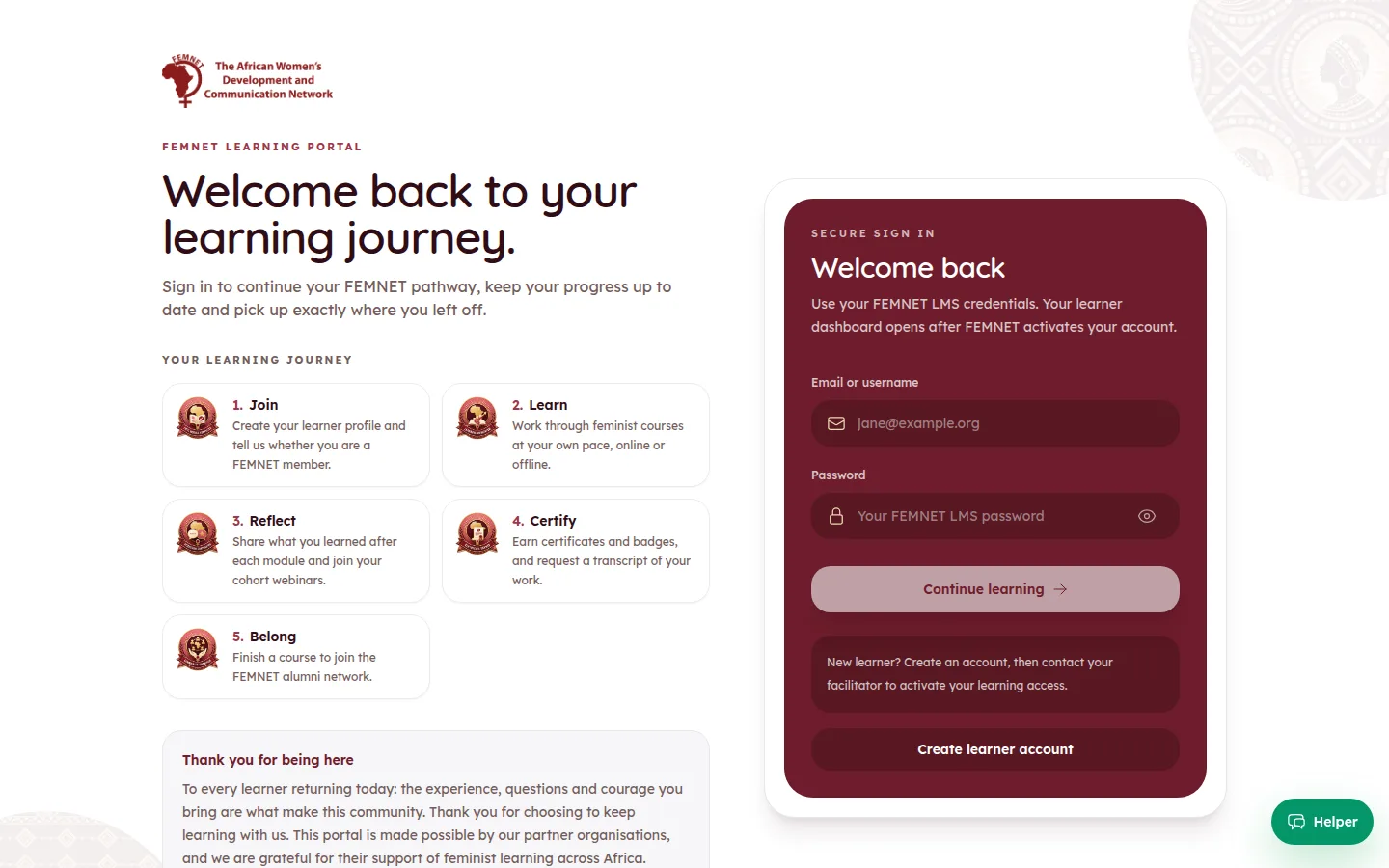
Enter email and password
The learner enters their Email or username and Password and signs in.
- 2
Enter the code if asked
When email verification is switched on in Settings, learners get a by email every time they sign in. They type the 6-digit code to continue. Codes expire after 10 minutes; signing in again sends a new one.
- 3
First sign-in
On their first visit, learners are asked How did you hear about the learning portal?. They can answer or choose Ask me later. The answer appears in MEL Analytics as the .
- 4
Take the tour
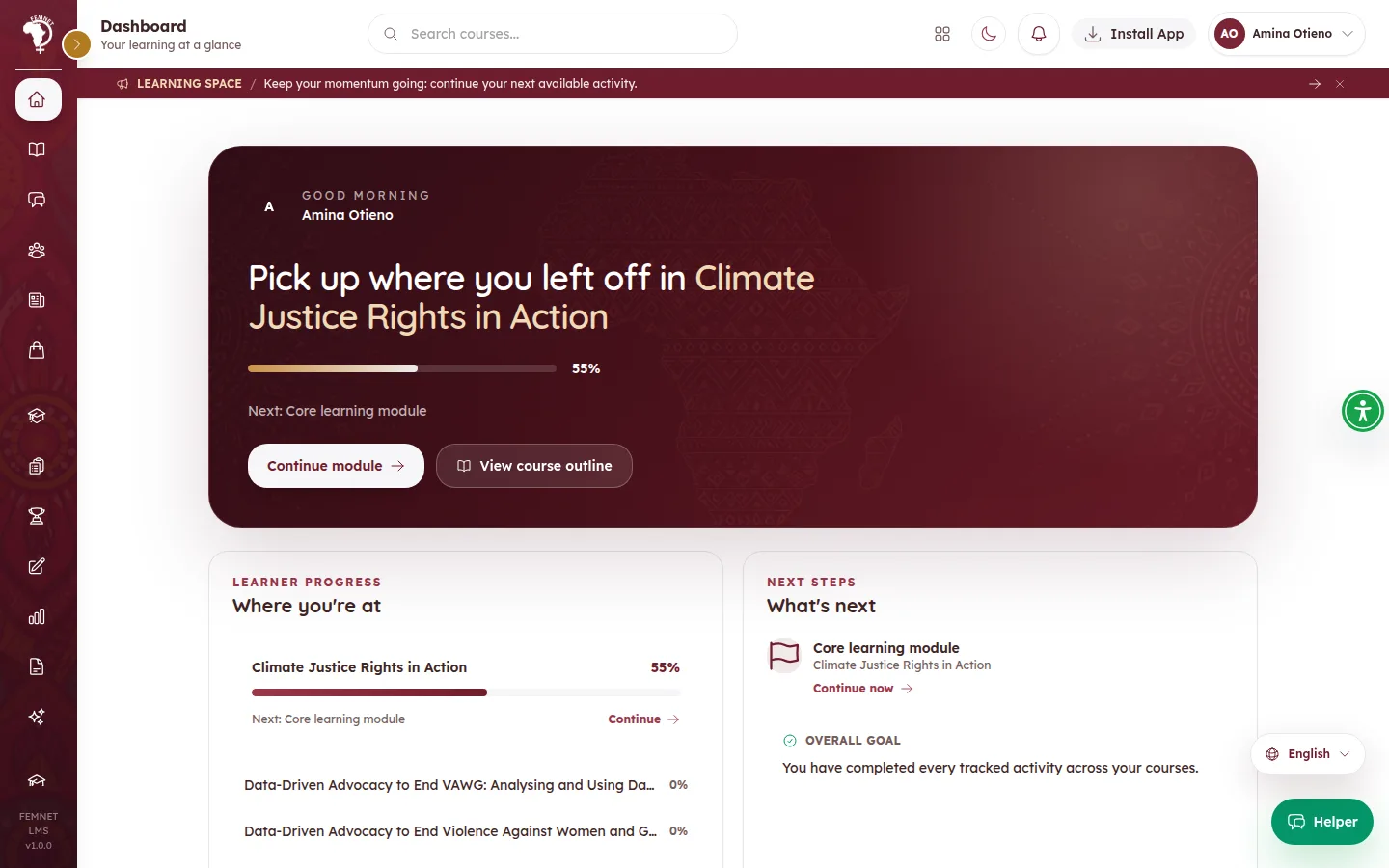
A short FEMNET learner tour explains the dashboard, courses and certificates. Learners can skip it and reopen it later from Take a learning tour in the profile menu.
- 5
Forgotten passwords
There is no reset link on the sign-in page. A facilitator sets a new password from the learner's record (see Look up a learner) and shares it securely.
Step 1: Enter email and password