
Add merchandise and digital freebies
List physical and digital items in the learner shop.
FEMNET staffDone in: Facilitator hub4 steps
- 1
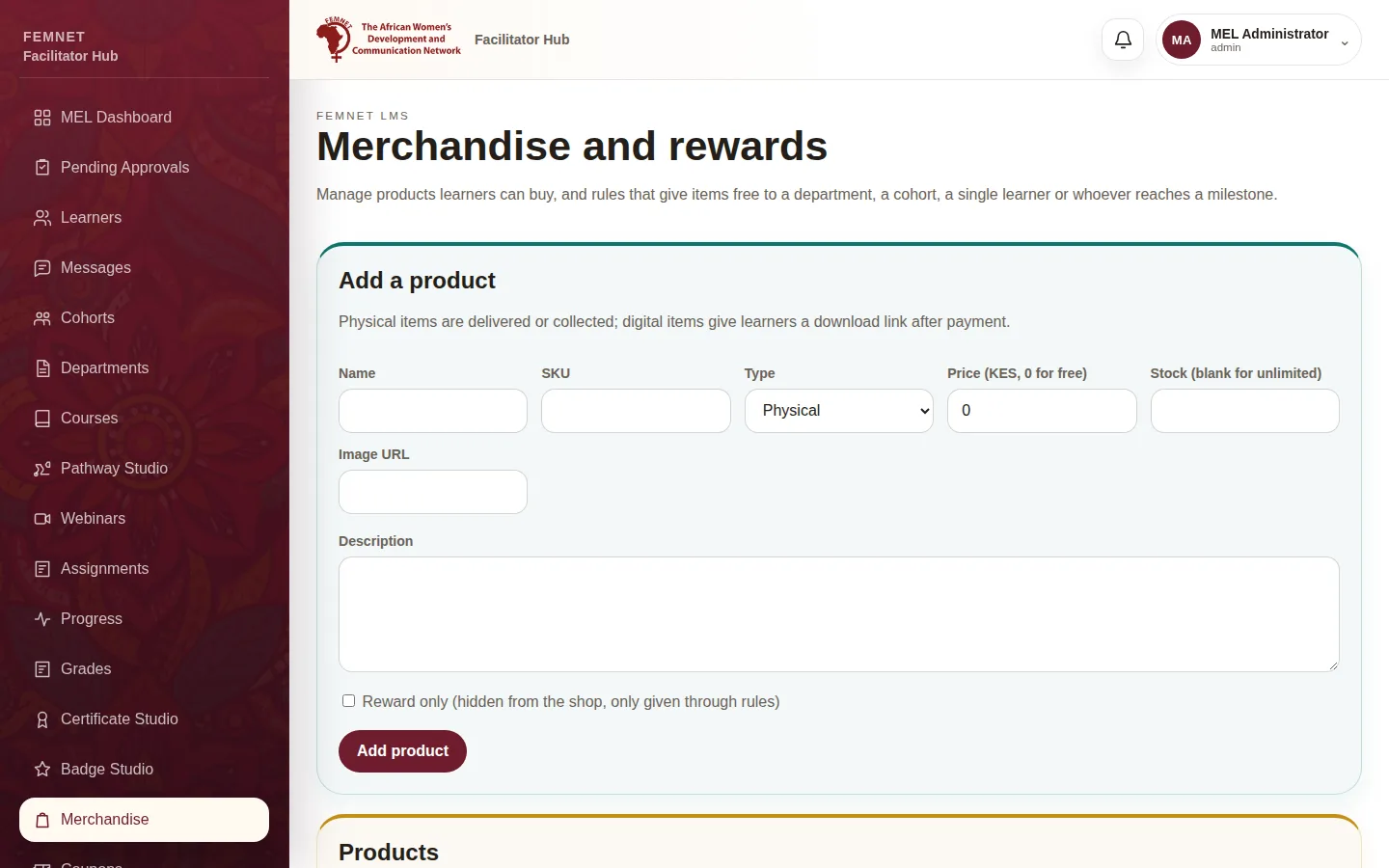
Open Merchandise
Select Merchandise in the hub menu.
- 2
Fill in the product
Under Add a product, enter a Name, an optional SKU, and choose Physical or Digital. Set Price (KES, 0 for free) and Stock (leave blank for unlimited).
- 3
Add the picture and download
Paste an Image URL. For a digital item, add the Download link learners get after paying or claiming.
- 4
Save
Add a Description and select Add product. It appears in the learner shop straight away.
Step 1: Open Merchandise