
Sign in to the facilitator hub
Reach the hub, sign in with your email and password, and enter a sign-in code if asked.
- 1
Open the facilitator hub
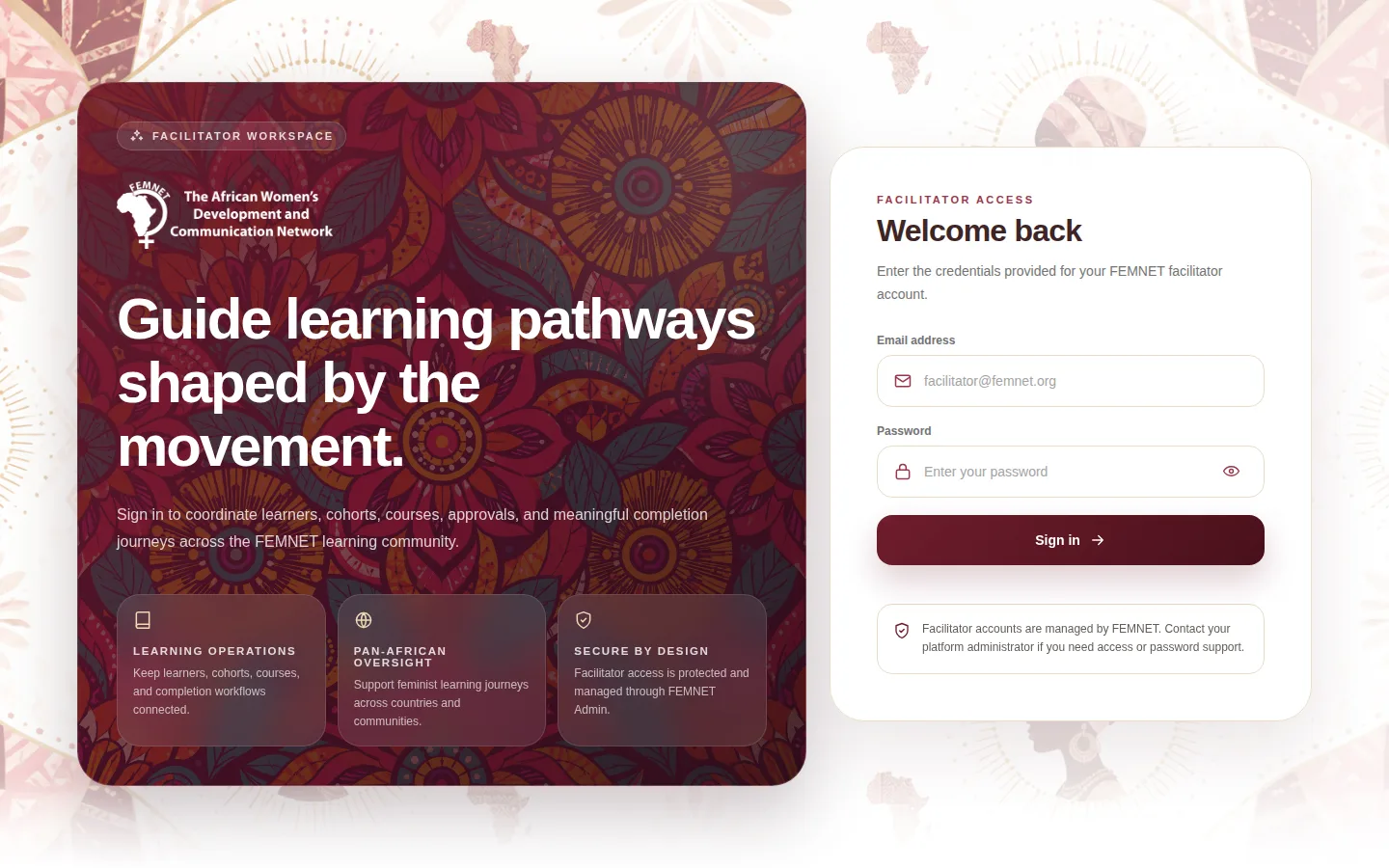
Open the facilitator hub address your IT team gave you in a browser. If you are not signed in, the hub takes you to the Facilitator access page.
Tip: Bookmark the address. The hub works best in an up-to-date Chrome, Edge, Firefox or Safari.
- 2
Enter your email and password
Type your Email address and Password, then select Sign in. Use the eye button in the password box to check what you typed.
Accounts are created by FEMNET. If you do not have one, or have forgotten your password, contact your platform administrator.
- 3
Enter the sign-in code if one is requested
If is switched on, the hub asks for a Verification code. Check your email for a 6-digit code, type it in and select Verify and sign in.
Codes expire after 10 minutes. If yours has expired, go back and sign in again to get a new one.
- 4
Find your way around the dashboard
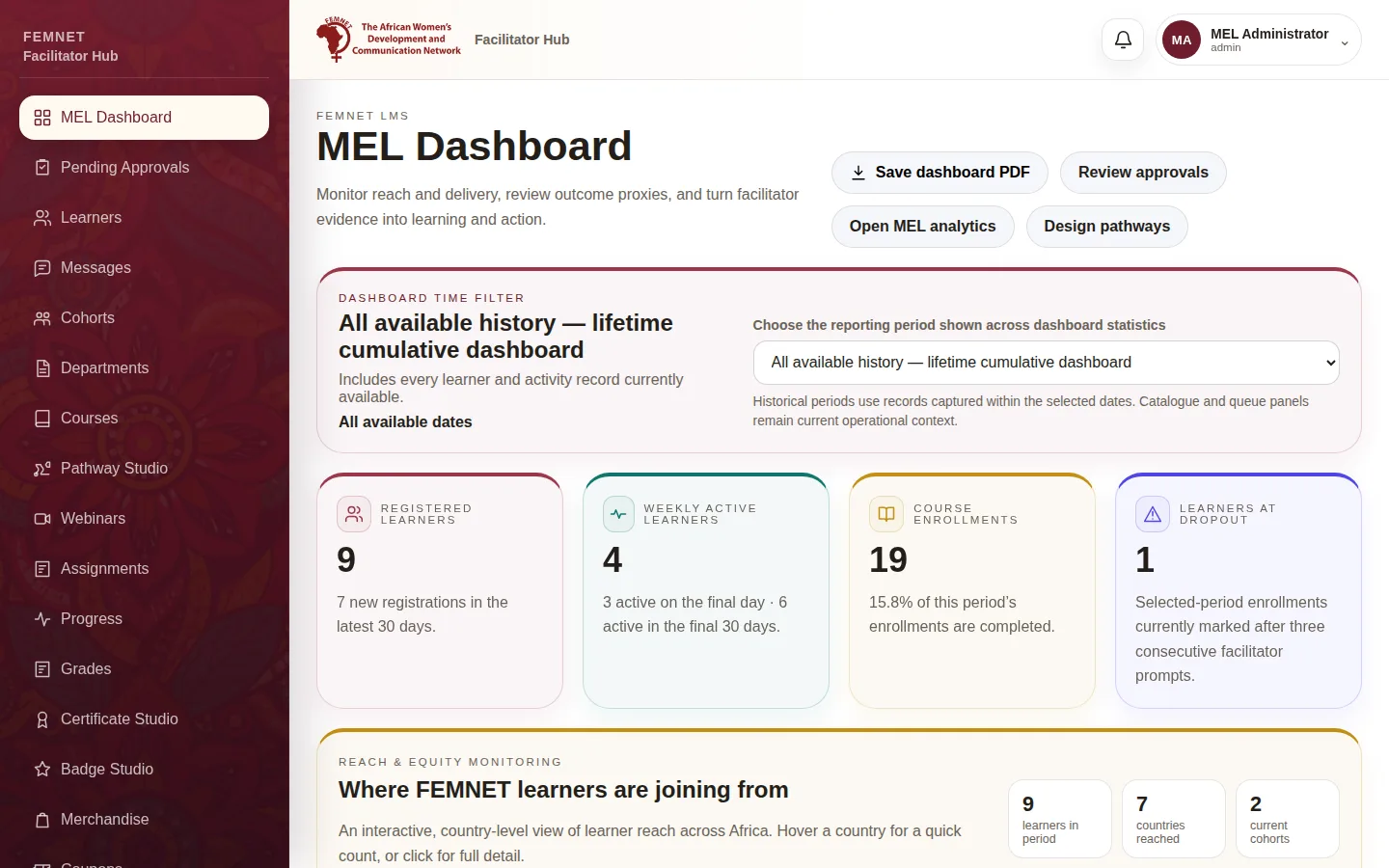
After signing in you land on the MEL Dashboard. The menu on the left lists every area of the hub; admin-only pages such as Departments appear only for admins. Your name and Sign out are in the top right, and Profile settings opens the Settings page.
Tip: Collapse the menu with the arrow at its top to get more room on small screens.
Step 1: Open the facilitator hub
What you will see
You are signed in and can see the hub menu.
If something goes wrong
- The code never arrives.
- Check your spam folder and wait a minute. If it still does not arrive, ask IT to check the email settings (see Domains and email).
- "Invalid credentials" even though the password is right.
- Your account may be inactive or not have a facilitator or admin role. Ask an admin to check your account.