
Notes, widgets and focus mode
Note-taking and the study tools around each lesson.
Supporting learnersDone in: Learner app5 steps
- 1
Lesson notes
Inside a lesson, My Notes lets the learner jot a note and select Save Note. Notes can be edited or deleted later.
- 2
All notes
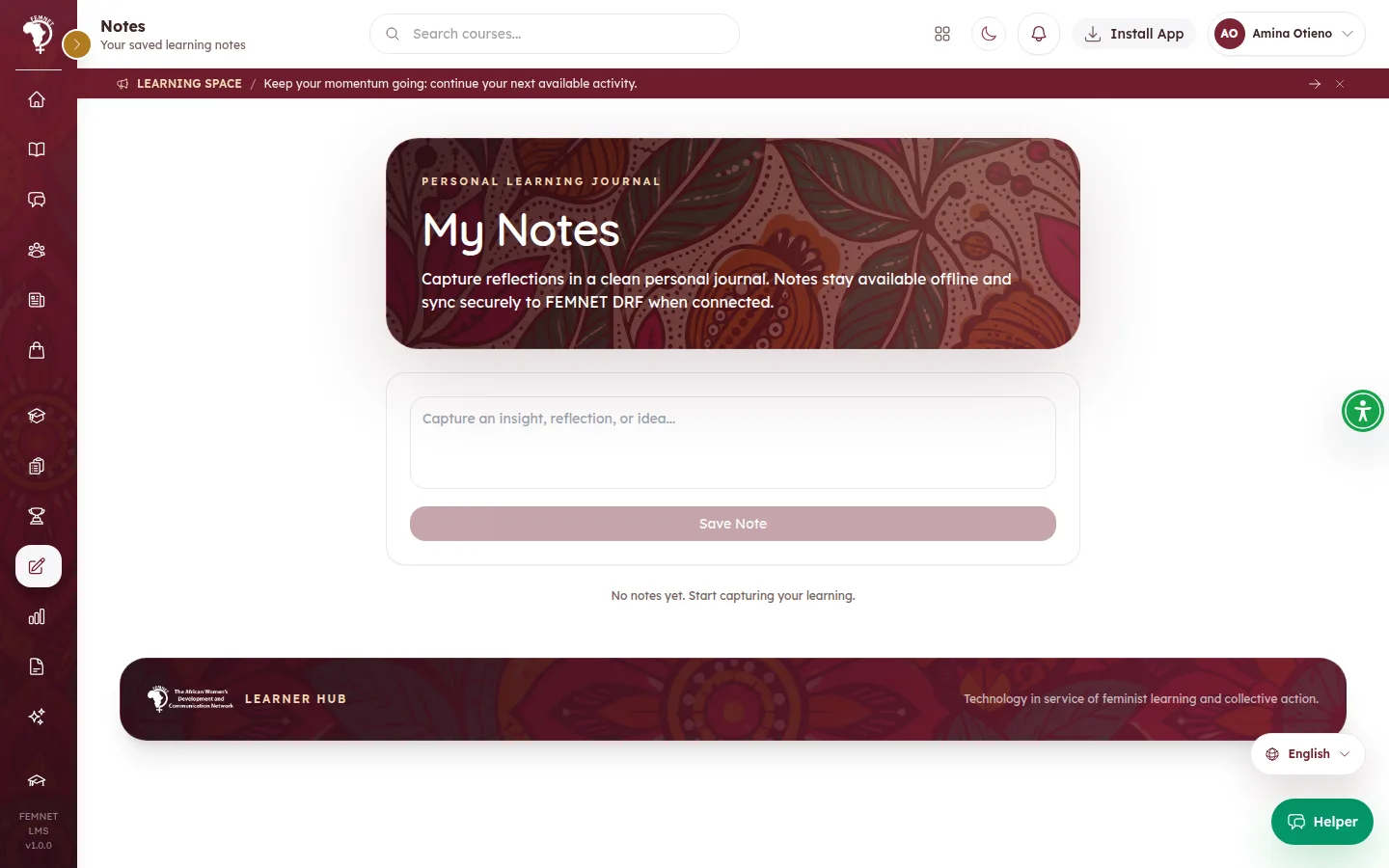
The Notes page collects every note as a personal journal. Notes work offline and sync when connected.
- 3
Widgets
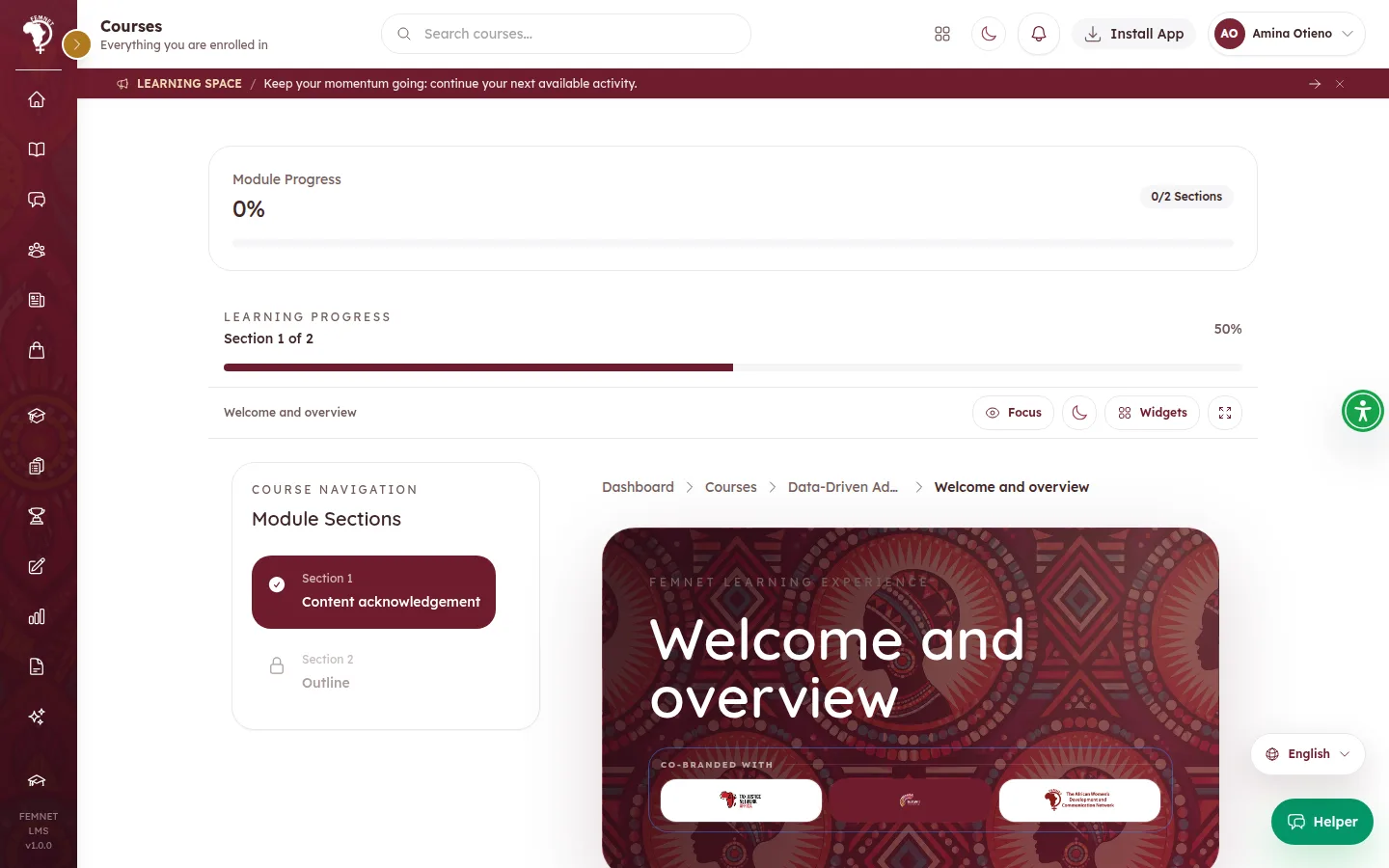
Select Widgets above the lesson to open study tools, such as notes for this module.
- 4
Focus and full screen
Select Focus to hide everything except the current section. The expand button beside it uses the whole screen for the lesson.
- 5
Listen to a lesson
Select Listen above any lesson to hear it . The paragraph being read is highlighted. The settings button beside it changes the speed and voice. It uses the device's own voices, so it also works offline.
Step 1: Lesson notes