
Add a quiz or practice check
Create a scored quiz with a pass mark and attempts limit.
FacilitatorsDone in: Facilitator hub4 steps
- 1
Add a quiz activity
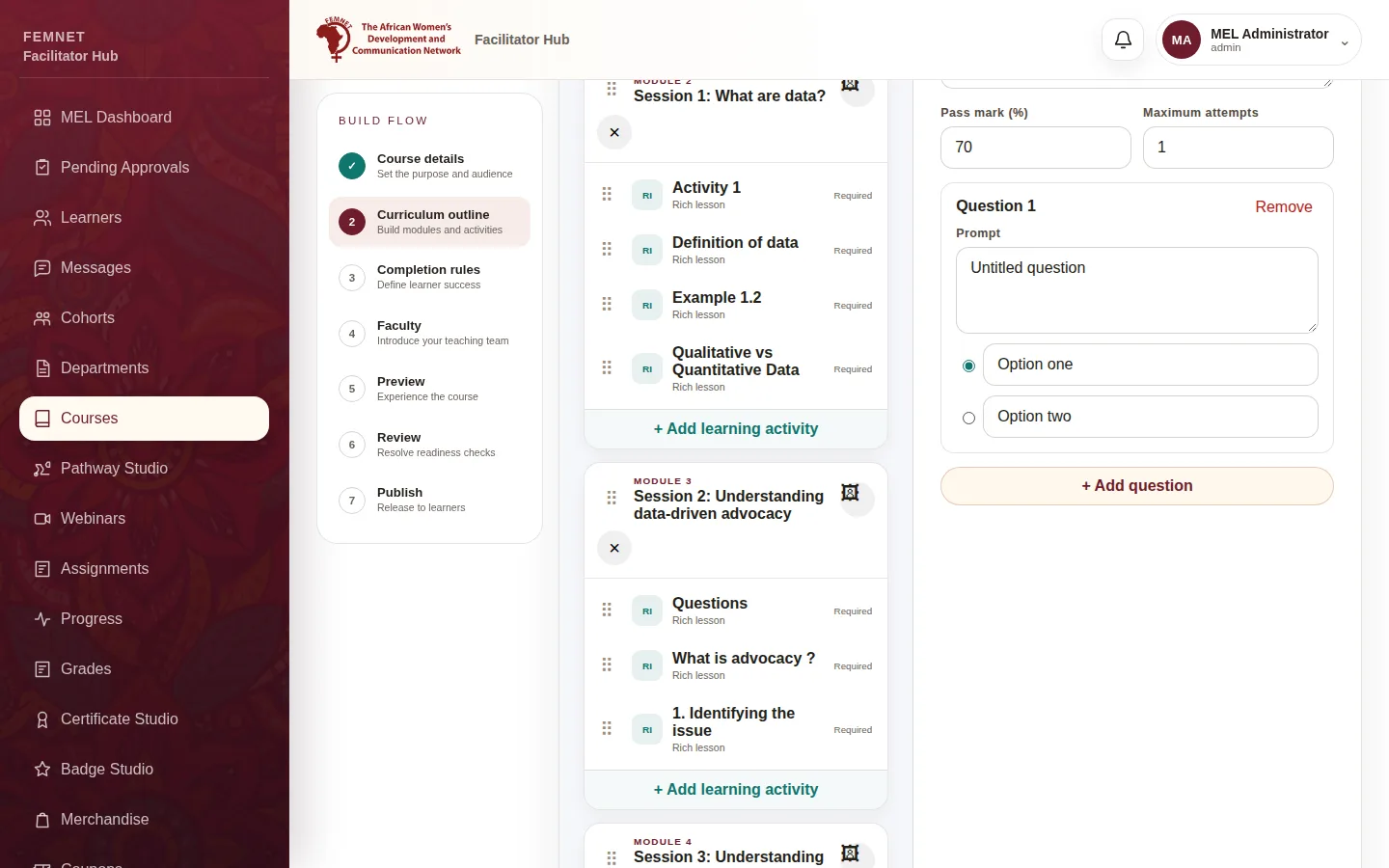
In Curriculum outline, select + Add learning activity and set Content type to Quiz.
- 2
Set the pass mark and attempts
Pass mark (%) defaults to 70, the portal's . Maximum attempts sets how many tries a learner gets.
- 3
Write the questions
Select + Add question. Write the Prompt, fill in the answer options, and select the radio button beside the correct answer. Select Remove to delete a question.
- 4
Practice checks in lessons
Short inside imported lessons must be answered correctly before the learner can continue. Quizzes count towards the assessment average used for certificates.
Step 1: Add a quiz activity