
Create a course from scratch
Start a new course in Course Studio and work through its build steps.
- 1
Start a new course
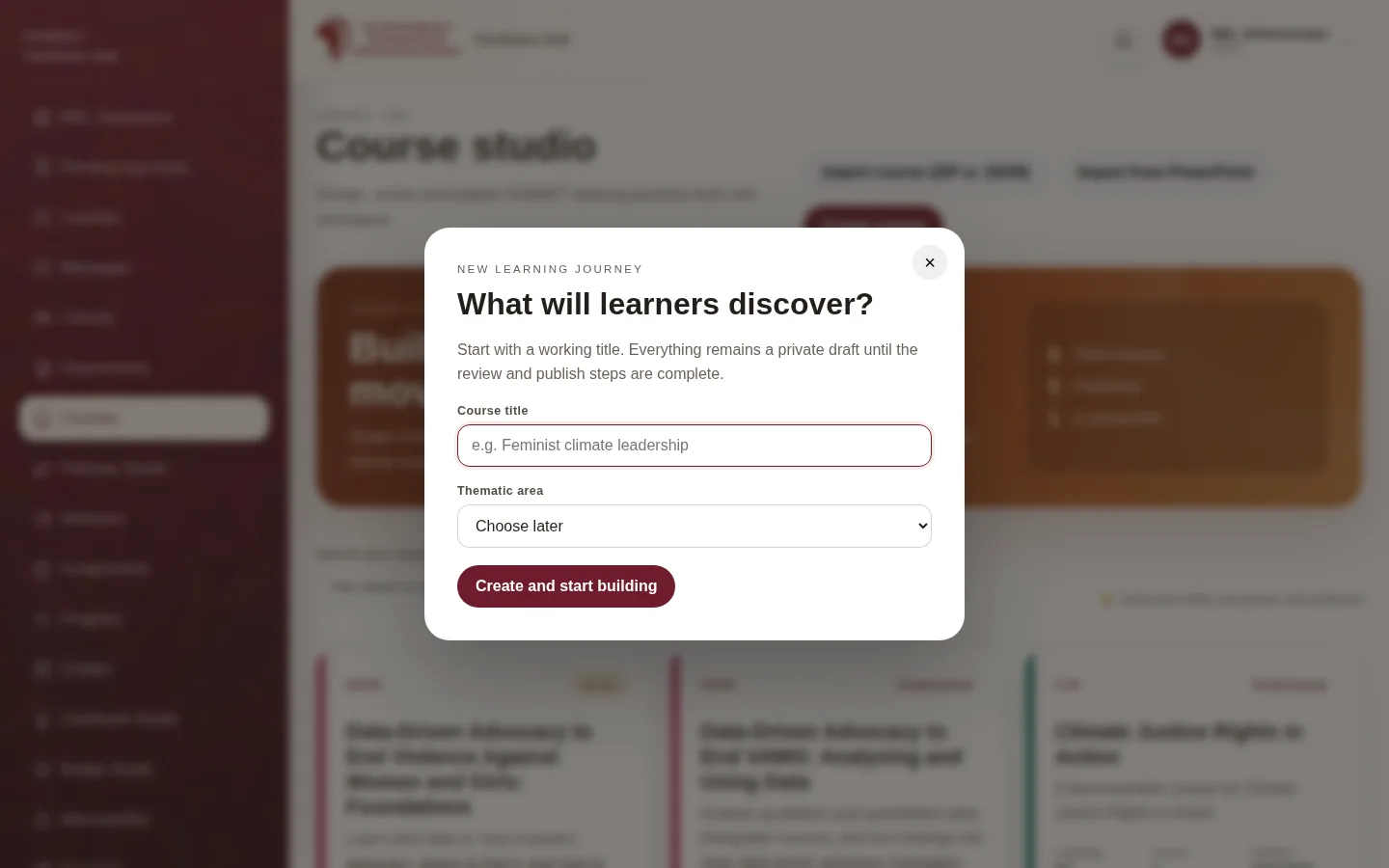
Select Courses in the hub menu, then Create course. Enter a Course title, choose a (or Choose later) and select Create and start building. The course stays a private draft until it is published.
- 2
Course details
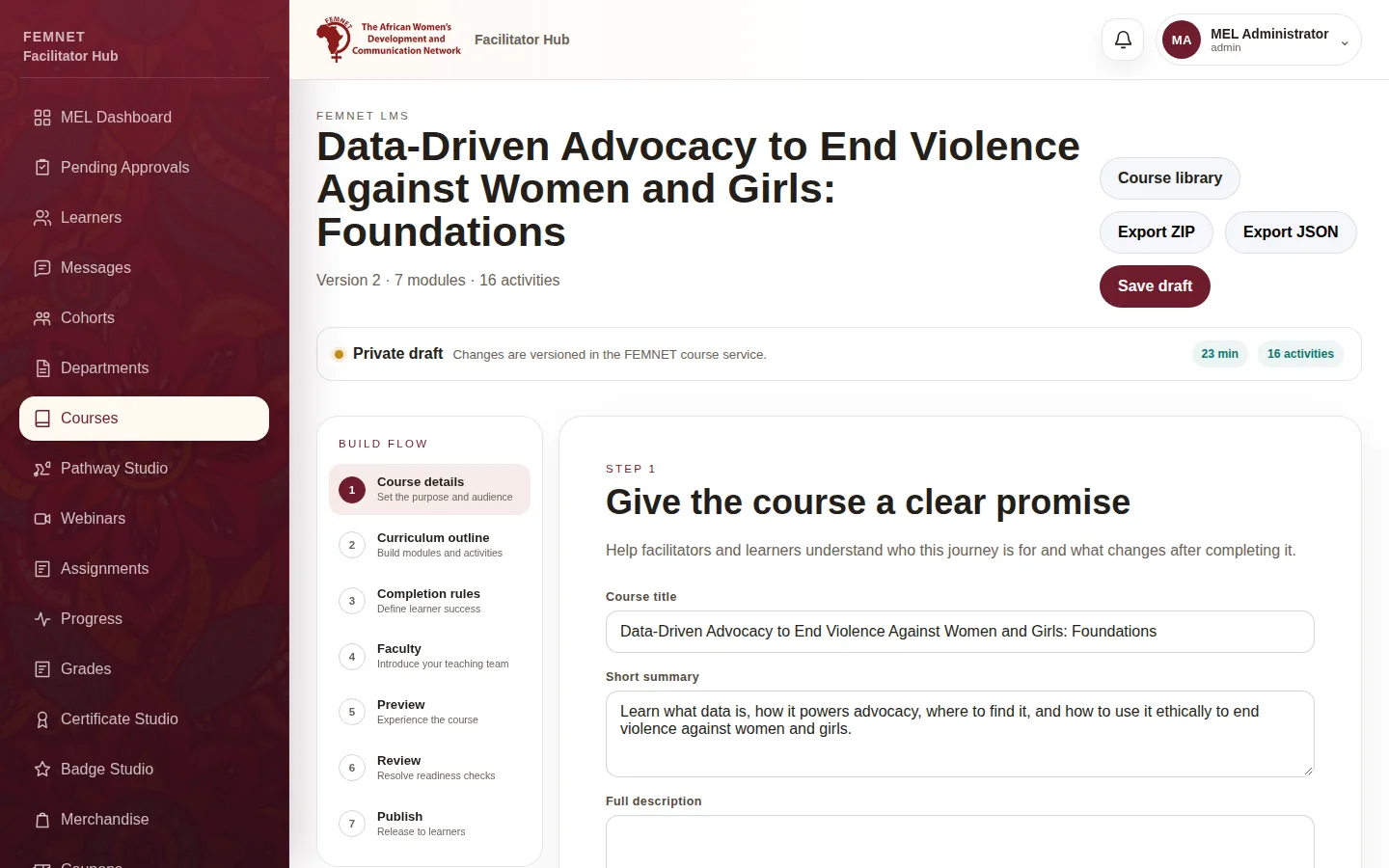
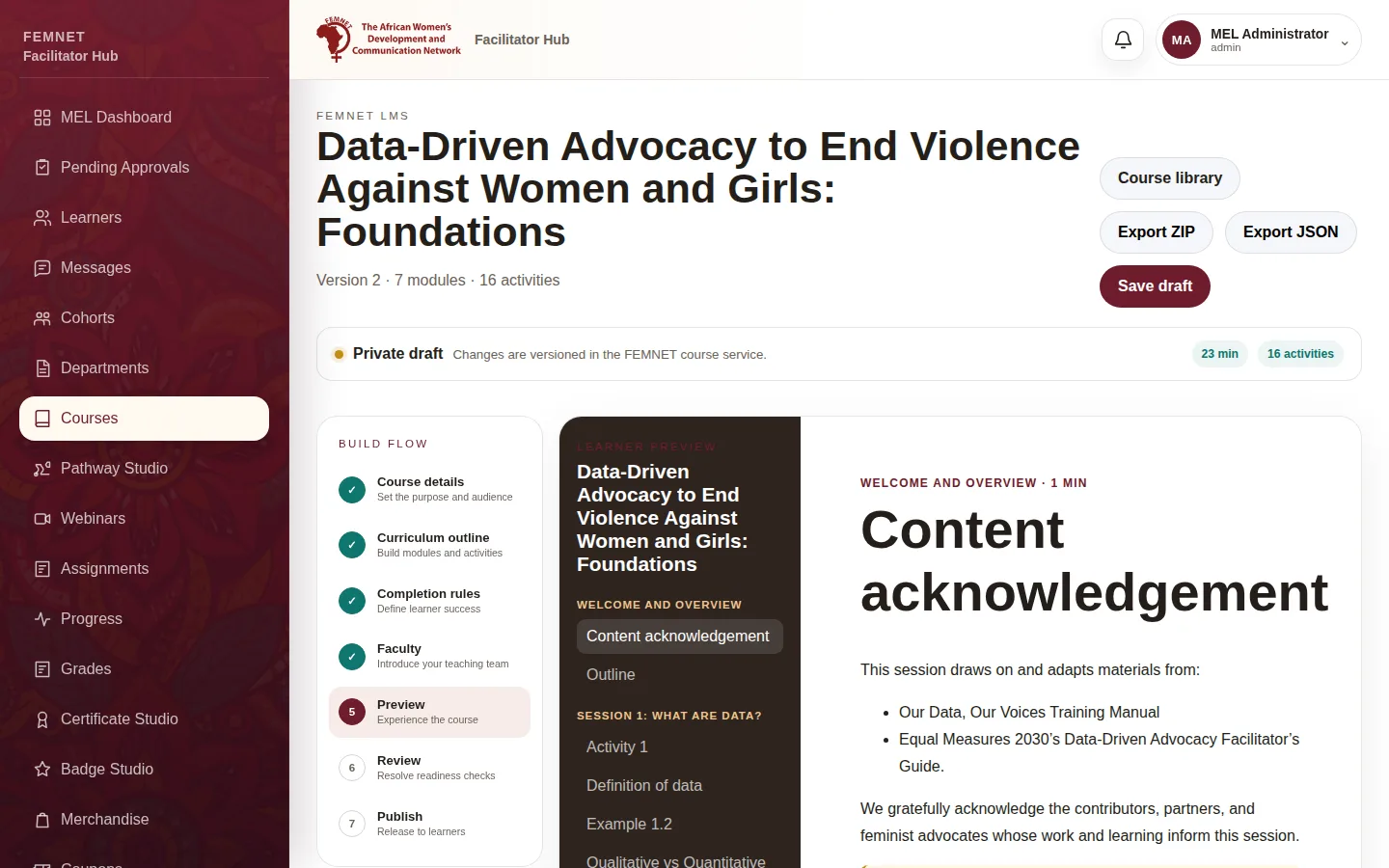
The studio walks you through seven steps shown along the top. In Course details, write a Short summary and Full description, and choose the Level, Language and Category. Under Branding, upload a Course backdrop and pick co-branding sponsors. Select Save and continue →.
- 3
Curriculum outline
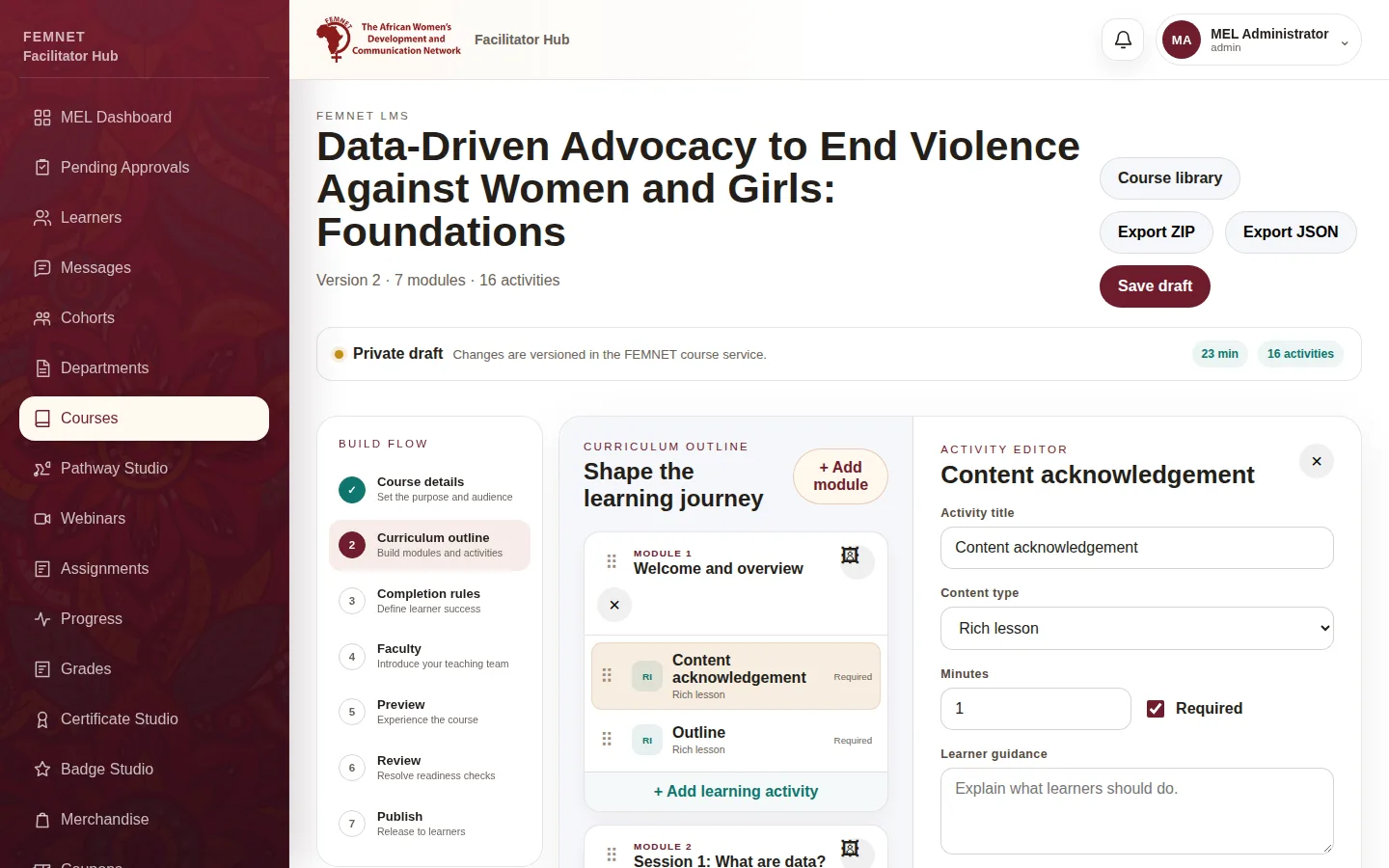
Select + Add module to create a , then + Add learning activity inside it. Select an activity to edit its Activity title, Content type, Minutes and Learner guidance. Drag modules and activities by their handles to reorder them.
Tip: Content types are Rich lesson, Video, Resource, Quiz, H5P interactive, SCORM package, External link, Assignment and Survey.
- 4
Completion rules
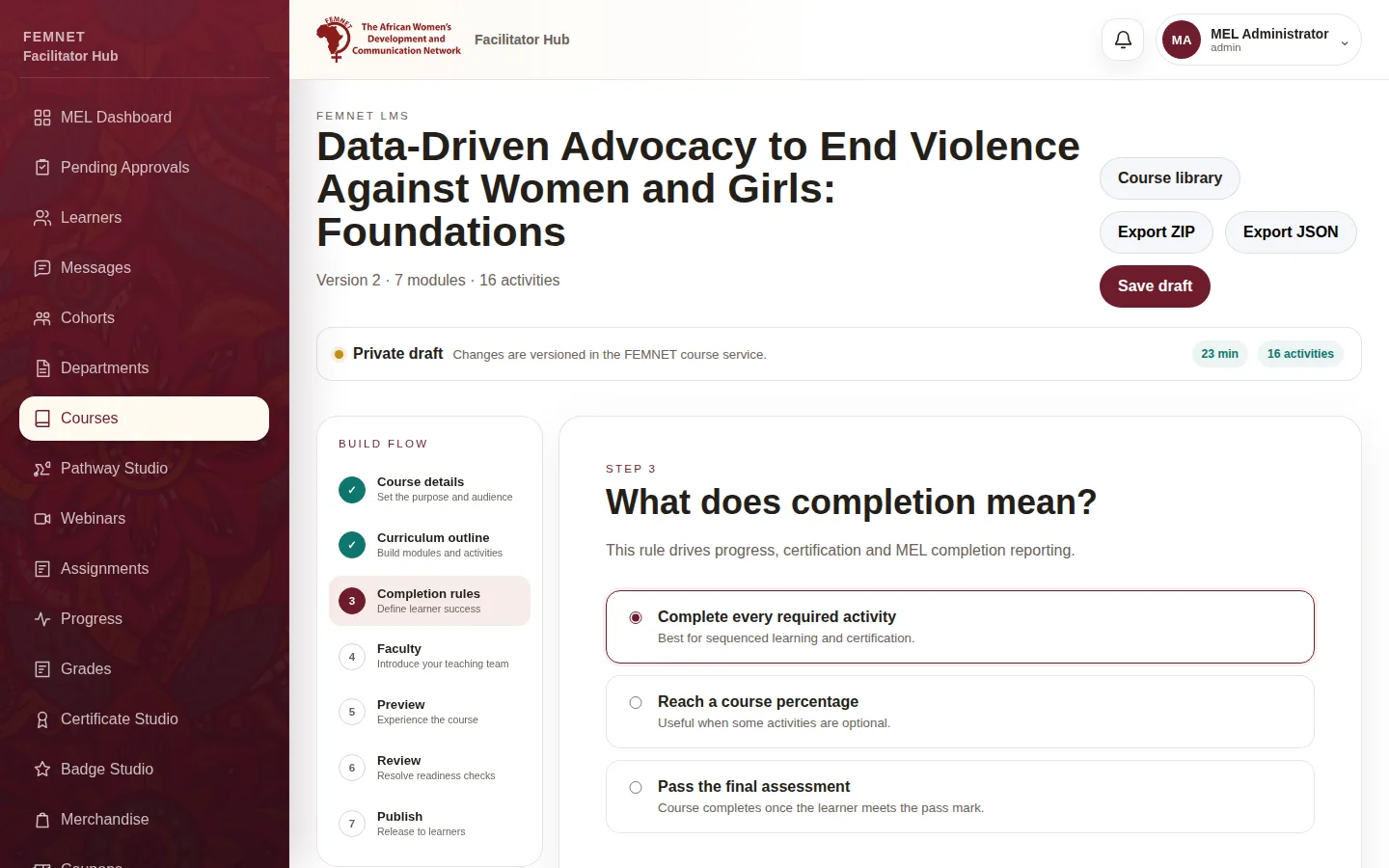
Set the Required percentage of activities a learner must finish. This rule drives progress, certificates and MEL completion reporting.
- 5
Faculty, preview and review
Add the teaching team in Faculty (see Introduce the teaching team), check the learner's view in Preview, then publish as described in Review and publish a course.
- 6
Save as you go
Select Save draft at the top at any time. Drafts are private: learners never see them.
Step 1: Start a new course