
How learners sign up
What a learner fills in, and what happens after they create an account.
- 1
Open the sign-up page
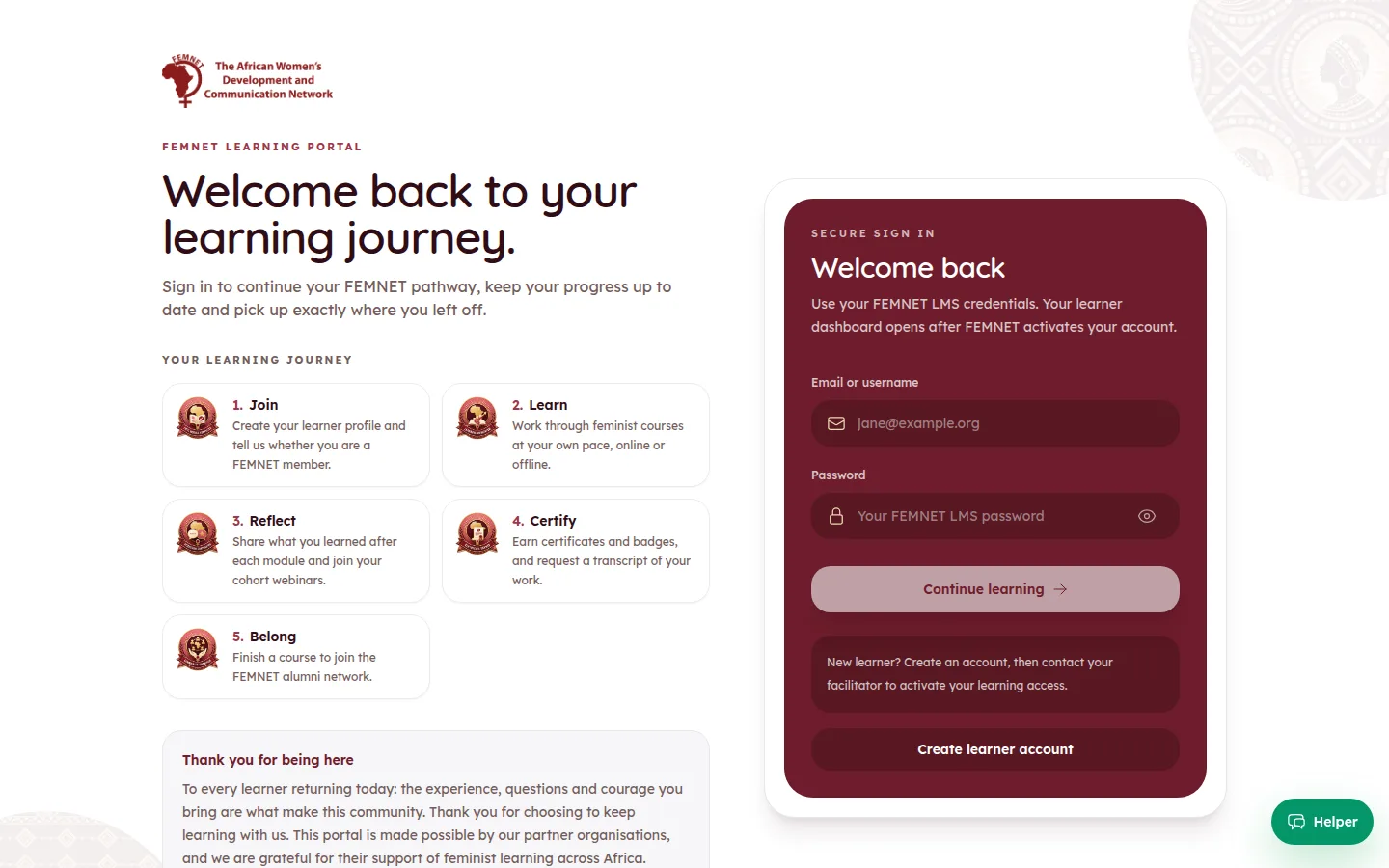
On the learner app's sign-in page, the learner selects Create learner account.
- 2
Fill in their details
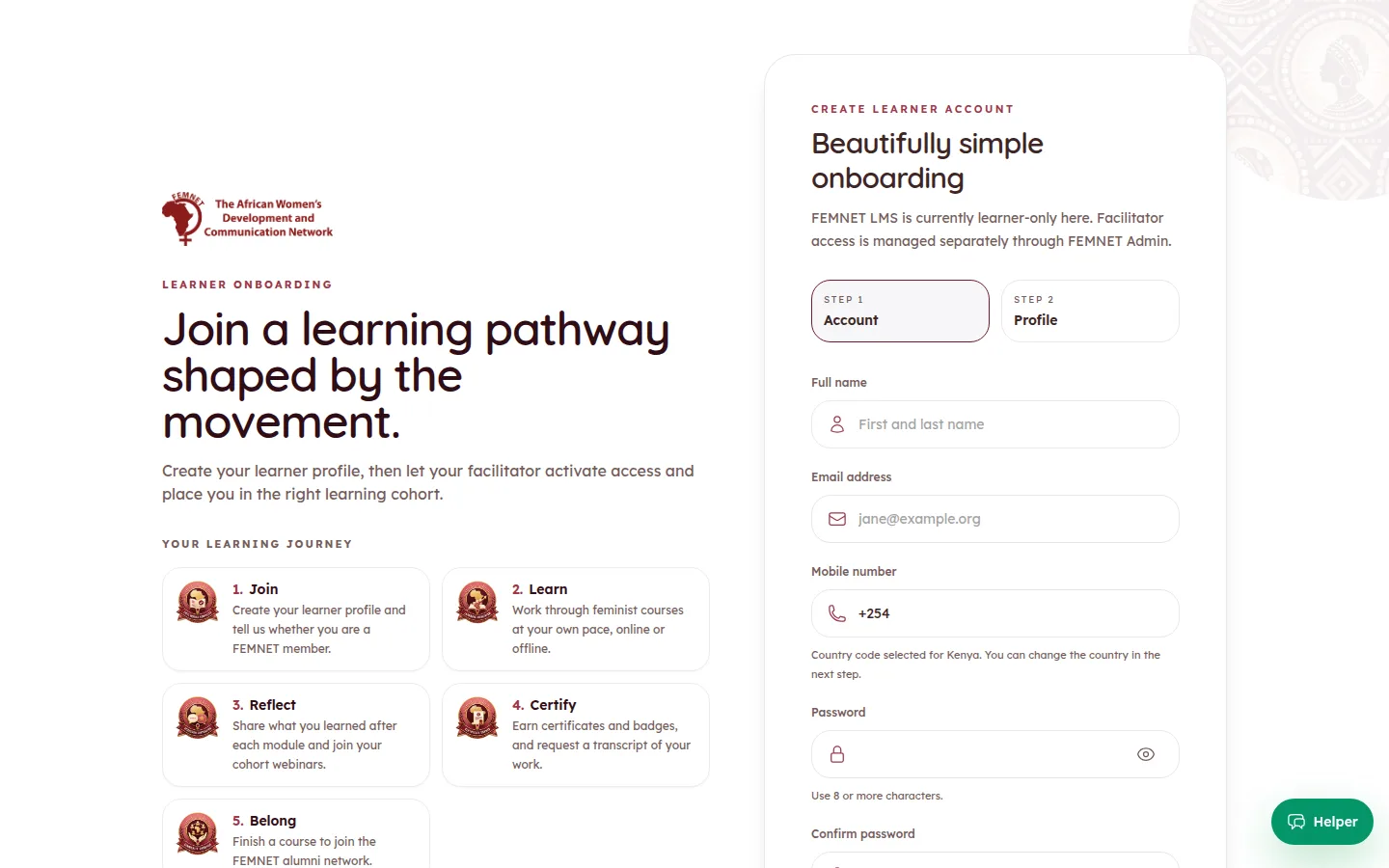
They enter their Full name, Email address, Mobile number and a password twice, then their organisation (optional), Gender, Age category, Primary learning interest and Country. They choose Member or Not a member under Are you a FEMNET member?, accept the safeguarding, data protection and copyright policies, and select Create account.
Tip: These answers feed the MEL demographics, so encourage learners to fill them in honestly. Membership is recorded on their account and can be corrected from their learner record in the hub.
- 3
Verify their email if asked
If email verification is switched on, the learner gets a 6-digit code by email and enters it on Verify your email. Codes expire after 10 minutes.
- 4
Wait for activation
Unless automatic approval is on, the learner sees Your account is created. Activation comes next. They cannot sign in until a facilitator approves them in Pending Approvals.
Step 1: Open the sign-up page
If something goes wrong
- A learner says they signed up but cannot sign in.
- Find them in Pending Approvals or the Learners page and check their status is Active.