
Read the MEL dashboard
Understand the headline numbers, pending work and cohorts on the hub's home page.
- 1
Choose a reporting period
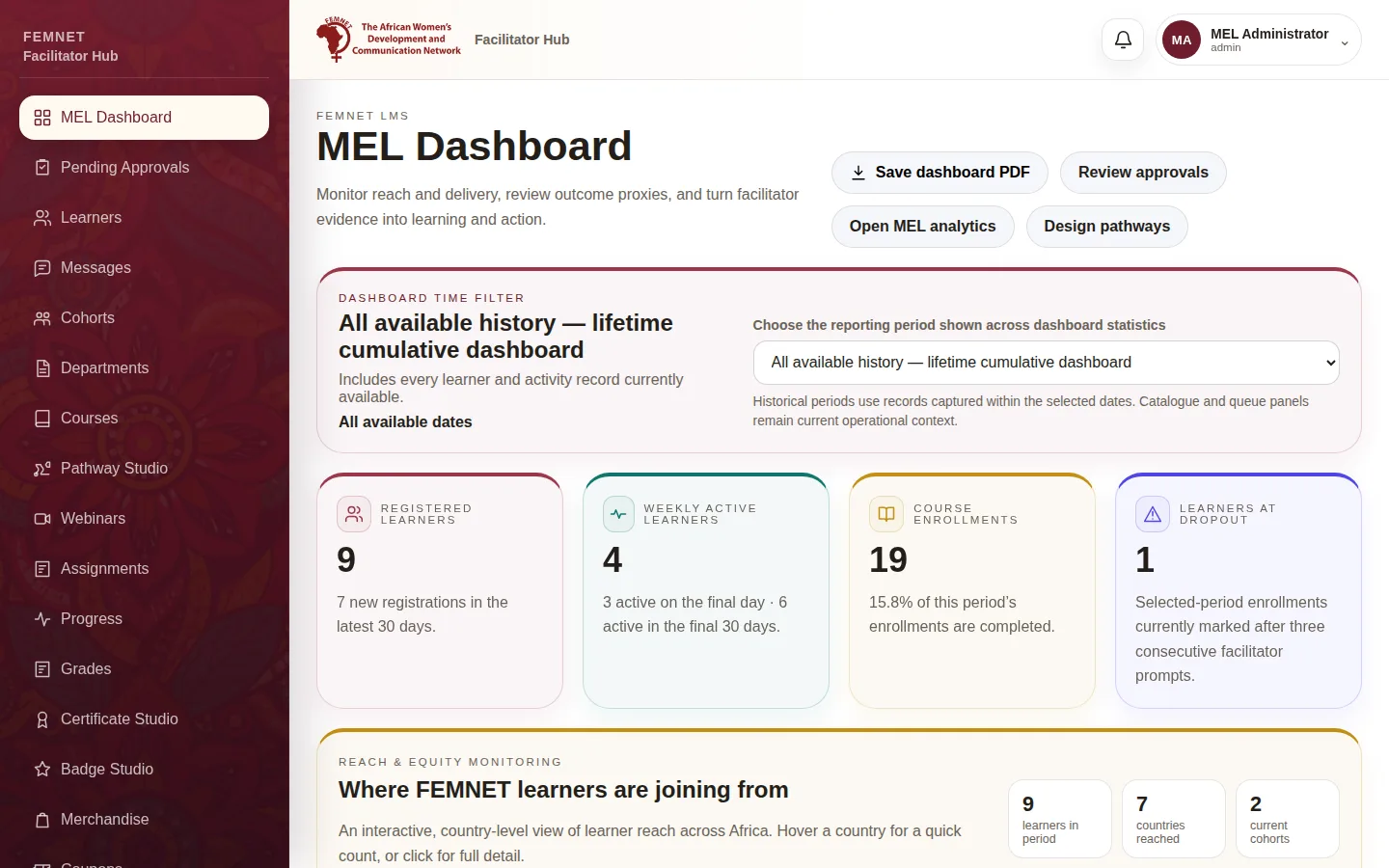
The MEL Dashboard opens first after you sign in. Use the Dashboard time filter to choose the period the figures cover. The Evidence snapshot section is not time-filtered.
- 2
Read the headline cards
The top cards show registered learners, active learners, course enrolments, learners at dropout and pending approvals for the period. A learner counts as dropped out after three facilitator check-ins with no new course activity.
- 3
Act on the pending queue
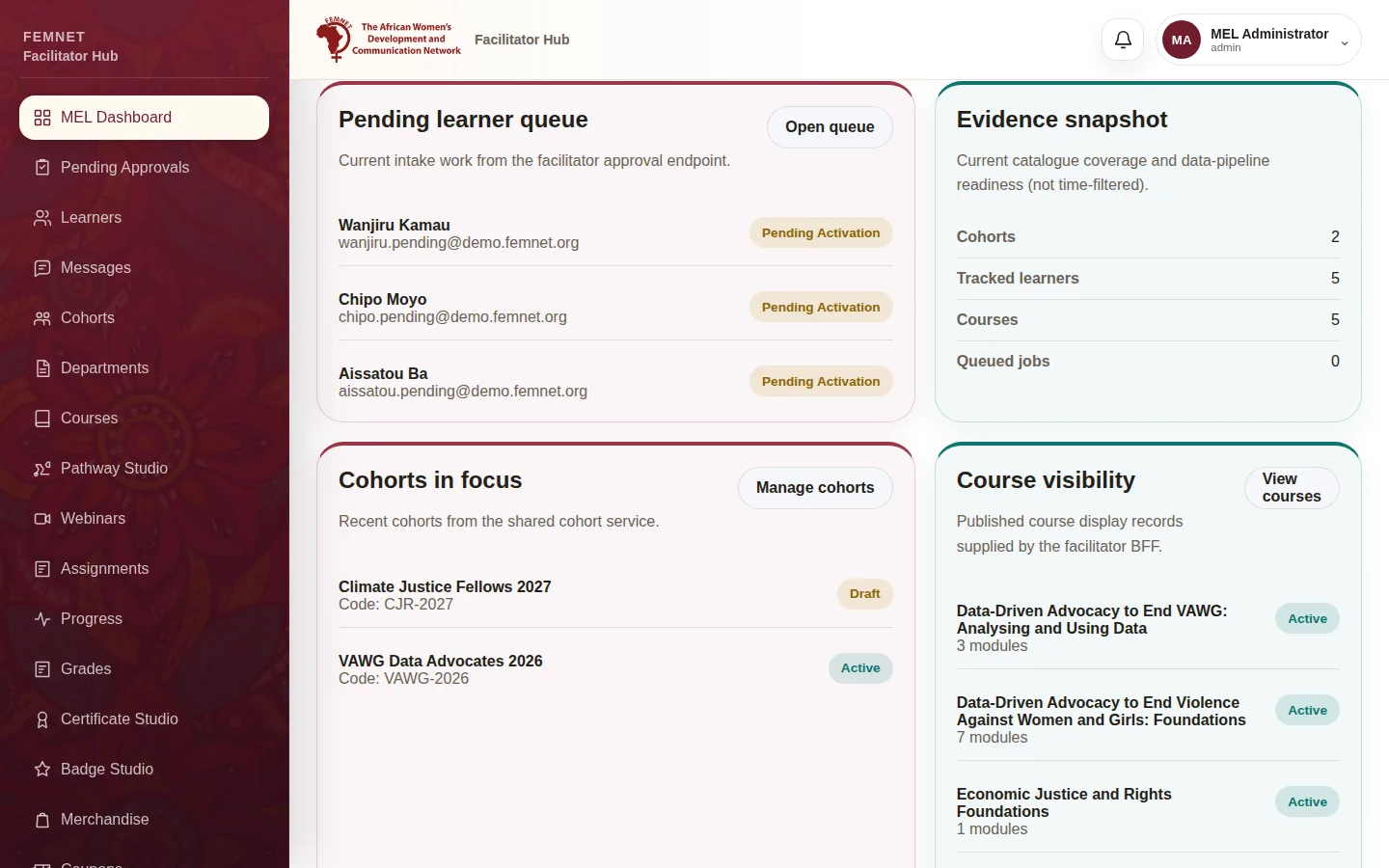
Pending learner queue lists sign-ups waiting for . Select Open queue to approve them.
- 4
Follow cohorts and courses
Cohorts in focus shows recent , and Course visibility shows published courses. Use Manage cohorts and View courses to open them.
- 5
Save a PDF
Select Save dashboard PDF to keep a copy of the dashboard for a meeting or report.
Step 1: Choose a reporting period