
Change platform settings
Switch automatic learner approval, email verification and two-factor sign-in on or off.
Before you start
- Admin or super admin role
- 1
Open Settings
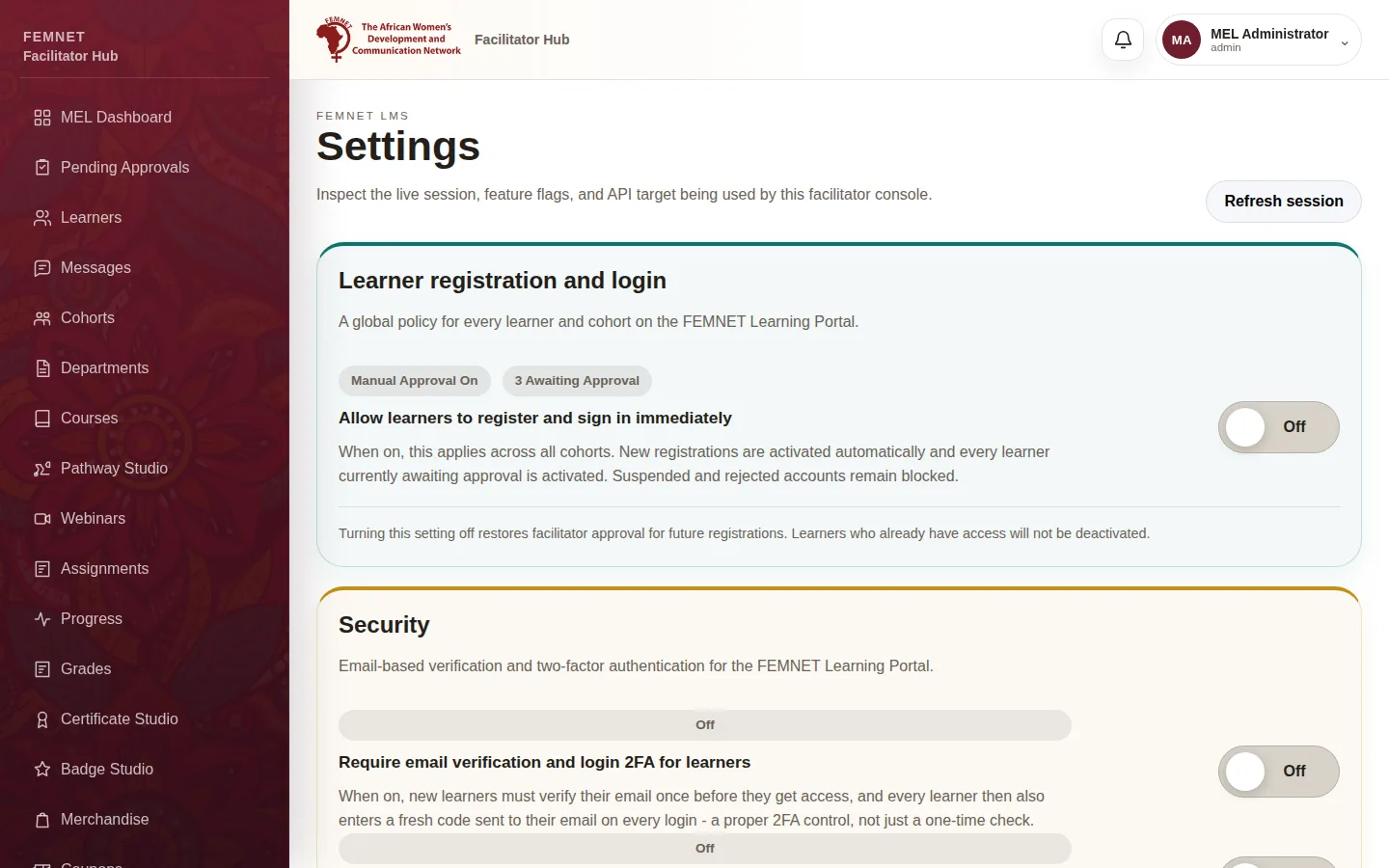
Select Settings in the hub menu, or Profile settings in the top right. The switches are only shown to admins.
- 2
Automatic learner approval
Under Learner registration and login, the switch Allow learners to register and sign in immediately skips the queue: new learners are active as soon as they sign up, and everyone already waiting is activated too. Suspended and rejected accounts stay blocked. Leave it off if you want to check every sign-up first.
- 3
Email verification for learners
Under Security, Require email verification and login 2FA for learners makes new learners confirm their email with a code before they can continue, and sends every learner a fresh each time they sign in.
- 4
Two-factor sign-in for staff
Require 2FA for facilitators and admins emails a code to staff every time they sign in to the hub. This is strongly recommended because staff accounts can see learner data.
- 5
Check the sync log
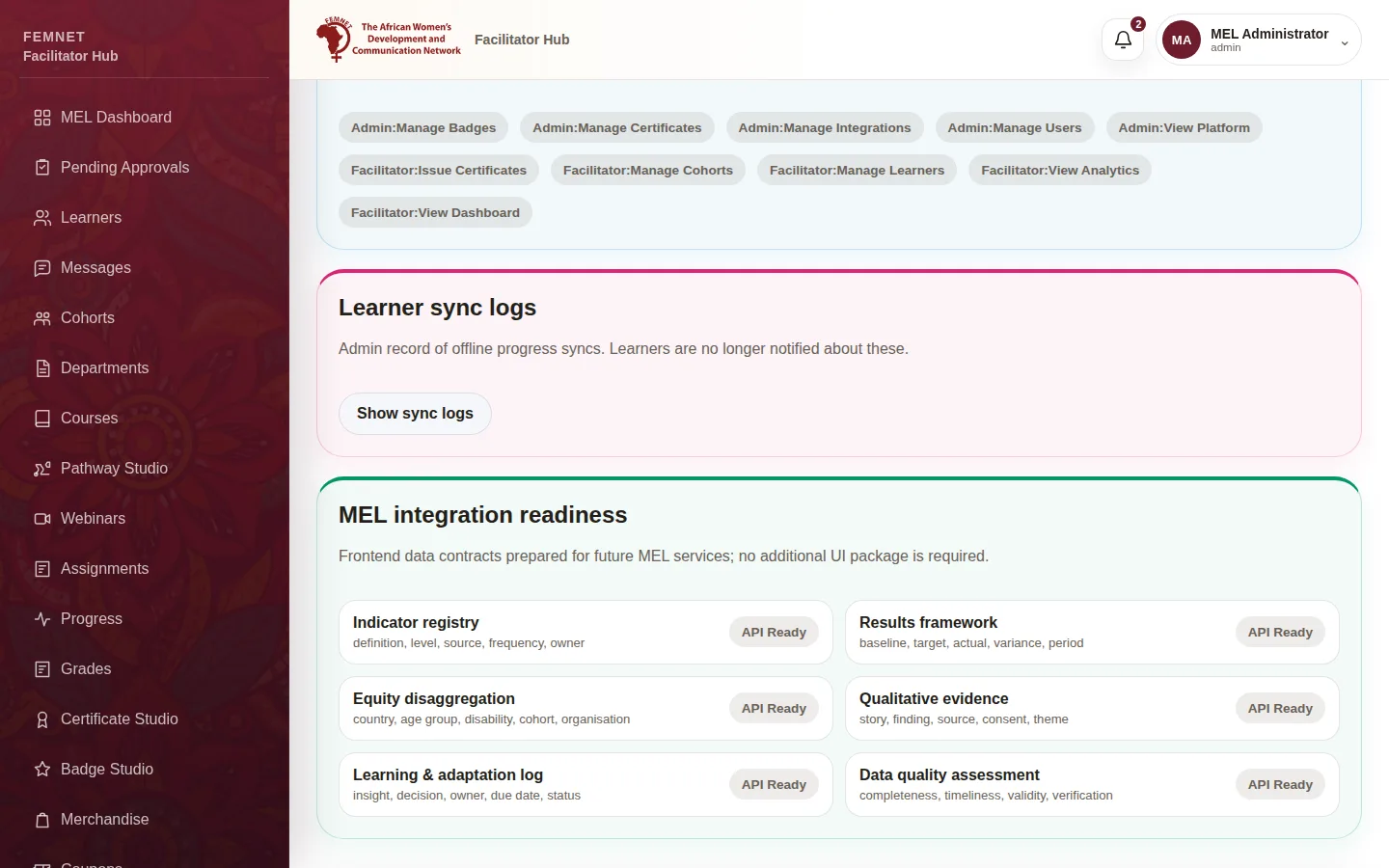
Further down, Show sync logs opens the : a record of learner progress syncs, useful when a learner says their progress is missing.
Step 1: Open Settings
If something goes wrong
- Learners say they never receive codes.
- Codes are sent by email. Ask IT to check the email settings before switching verification off.